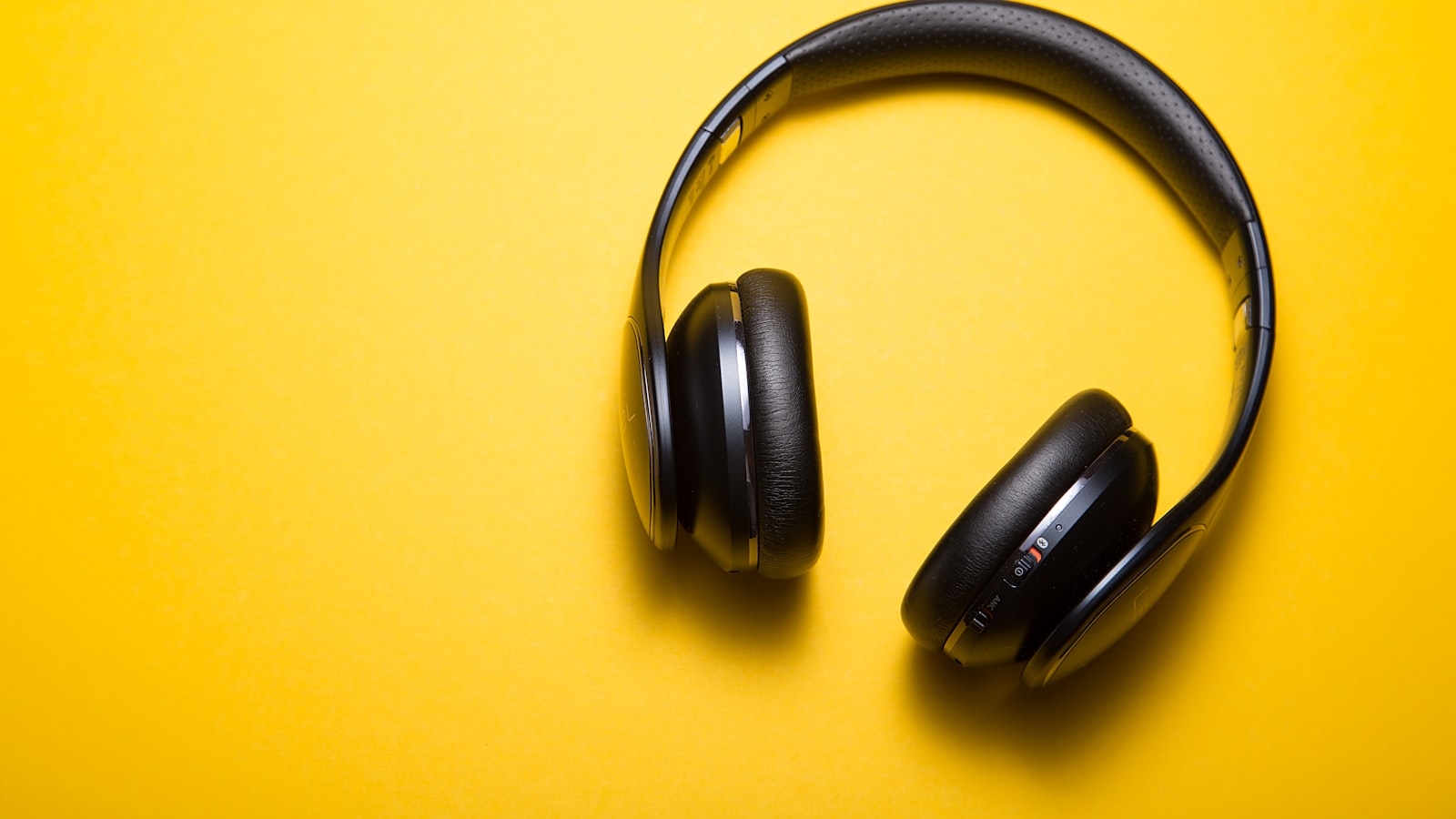
To pair any Bluetooth device, put the accessory into pairing mode (usually by holding its power button 5-7 seconds until an LED flashes), then open your phone or computer's Bluetooth menu and tap the device's name when it appears. That single handshake is stored permanently, so from then on the two reconnect automatically whenever both are powered on and within range.
Below are the exact settings paths for every major platform, what the codecs and version numbers actually mean for you, and the specific fixes for the failures people hit most often.
The pairing flow is identical everywhere, but the menu location differs. Bookmark the one you use.
- iPhone / iPad: Settings > Bluetooth. Leave this screen open while you pair, because iOS only actively scans while the page is visible. New accessories appear under "Other Devices."
- Android (Pixel/stock): Settings > Connected devices > Pair new device. On Samsung it is Settings > Connections > Bluetooth > "Scan." Android keeps scanning in the background, so devices pop in within a few seconds.
- Windows 11: Settings > Bluetooth & devices > Add device > Bluetooth. Or click the Bluetooth icon in Quick Settings (the panel above the clock) and choose "Go to Settings."
- macOS: System Settings > Bluetooth. Nearby devices list under "Nearby Devices"; click "Connect" next to the name.
On all four, there is also a fast toggle in the swipe-down or Quick Settings shade. That toggle turns the radio on and off but does not open the pairing list, so for a first-time pairing you still need the full menu above.
Pairing a new device, step by step#
1. Put the accessory in pairing mode#
Pairing mode is a temporary, discoverable state a device broadcasts for about 2-3 minutes. Most earbuds enter it automatically the very first time you open the charging case lid. For speakers, keyboards, and mice, you hold a dedicated button:
- Over-ear headphones (Sony, Bose, JBL): hold the power button roughly 5-7 seconds until the LED flashes blue, or blue-and-red on the first setup.
- True wireless earbuds (AirPods, Galaxy Buds, Pixel Buds): open the case, then press and hold the button on the case for about 5 seconds.
- Speakers: press the dedicated Bluetooth button (often marked with the Bluetooth glyph), not just power.
A light that flashes rapidly or alternates two colors is the universal "I'm discoverable" signal. A slow, steady blink usually means it is already trying to reconnect to a known device instead.
2. Select it in your Bluetooth list#
With the accessory flashing, open the correct menu from the list above. The device name appears, sometimes as a generic model number like "WH-1000XM5" before it fully connects. Tap it. Connection takes 2-10 seconds.
3. Confirm any passkey#
Simple audio devices connect silently. Keyboards and some car systems show a 6-digit passkey on both screens, or ask you to type a code on the keyboard and press Enter. This is Bluetooth's way of proving you are joining the right two devices and not a stranger's. Matching numbers, then "Pair," is all it needs.
Once done, the accessory reconnects on its own every time it is switched on nearby. You never repeat this unless you deliberately forget it.
Multipoint and switching between devices#
The single most useful feature to understand is multipoint, the ability of one pair of headphones to hold an active link to two source devices at once, say a laptop and a phone. When a call arrives on the phone, multipoint headphones pause the laptop audio and switch automatically, then hand back afterward.
Not every device supports it. Sony's XM4/XM5, most Bose QuietComfort models, and Jabra Elite series do; many cheaper earbuds connect to only one source at a time. Where multipoint exists, you usually enable it in the maker's companion app (Sony Headphones Connect, Bose Music, Jabra Sound+) because it is often off by default to save battery.
Forcing a manual handoff#
Without multipoint, an accessory clings to whichever paired device powered on first. To move it deliberately:
- On the device currently holding it, tap the accessory in the Bluetooth list and choose Disconnect (not Forget).
- On the device you want, tap the same accessory to connect.
The cleanest daily trick: if headphones keep grabbing your tablet when you want them on your phone, just toggle Bluetooth off on the tablet. With one option available, they connect to the right place every time.
What the version and codec numbers mean#
You do not need to memorize specs, but two matter in practice.
Bluetooth version affects range and stability. Bluetooth 5.0 and later (5.0 arrived in 2016, and most phones since 2018 have it) roughly quadruples usable range over the older 4.2 and holds a steadier link through walls. Both ends fall back to the lower version, so a Bluetooth 5.3 phone paired with an old 4.2 speaker performs at 4.2 levels.
Audio codec affects sound quality and lag. SBC is the guaranteed baseline everything supports. AAC is what Apple devices use well. aptX and aptX Adaptive (Qualcomm) and LDAC (Sony) carry more detail and lower latency, but only when both the phone and the headphones support the same one. An iPhone will never use LDAC no matter how good the headphones are, because iOS does not include it. This is why the identical earbuds can sound different on two phones.
Fixing connection trouble#
The device won't reconnect#
The fix that resolves the vast majority of Bluetooth faults is to forget and re-pair. A stored pairing can become corrupted after an update or a low-battery shutdown. Go to your Bluetooth settings, tap the device, choose Forget This Device (iOS/Android) or Remove (Windows), then pair it from scratch as if new. This wipes the stale link and almost always restores a clean connection.
Audio stutters or cuts out#
Bluetooth's practical range indoors is about 10 metres (33 feet), and it drops sharply through walls, microwaves, and even your own body. Interference is the usual cause of stutter because Bluetooth shares the crowded 2.4 GHz band with Wi-Fi and microwave ovens. Move the phone to the same side of your body as the headphones, and step away from a running microwave or a 2.4 GHz router.
It pairs but produces no sound#
Check the audio output selector, not the Bluetooth menu. On a laptop the connection can succeed while audio still routes to the built-in speakers. Click the volume icon and pick the headphones as the output. On phones, make sure media volume (not ringer volume) is up.
Nothing appears in the list#
Confirm the accessory is actually in pairing mode (flashing fast) and not merely on. If its battery is very low it may power up but fail to advertise, so charge it for 15 minutes first. On the phone side, toggle Bluetooth off and on, which restarts the radio and clears most transient glitches in seconds.
Common mistakes people make#
- Pairing from the wrong menu. Tapping the Quick Settings Bluetooth toggle turns the radio on but never opens the discovery list. First-time pairing always needs the full Settings > Bluetooth page.
- Not putting the device in pairing mode. An accessory that is simply switched on is invisible to new phones. It has to be flashing.
- Leaving it paired to a forgotten third device. If it keeps disappearing, it is probably auto-connecting to an old laptop in another room. Disconnect there or forget it.
- Expecting premium codecs on any phone. LDAC or aptX only work when both ends support them; otherwise you quietly get SBC.
FAQ#
Do I need Wi-Fi or mobile data for Bluetooth to work?#
No. Bluetooth is a direct device-to-device link and needs no internet, no account, and no monthly cost. You can pair and use headphones in airplane mode as long as Bluetooth itself stays on, which most phones now allow separately.
How many devices can I pair at once?#
You can store dozens of pairings, but only a limited number are active simultaneously. Most single accessories play to one source at a time; multipoint headphones actively hold two. A phone, meanwhile, can run several distinct accessories together, such as earbuds plus a smartwatch plus a car link.
Why does my headphone battery drain even when I'm not listening?#
An idle but connected accessory keeps its radio awake to stay reachable, which uses a small trickle of power. Truly powering it off, or closing earbuds in their case, stops this. Features like multipoint and always-on voice assistants raise idle drain further, so disable them in the companion app if standby time matters more than convenience.
Is it safe to leave Bluetooth on all the time?#
For everyday use, yes. Modern Bluetooth pairing requires mutual confirmation, so a stranger cannot silently connect to a device that is not in pairing mode. The main cost is a minor battery draw, which is why turning it off overnight is a reasonable habit but not a security necessity.