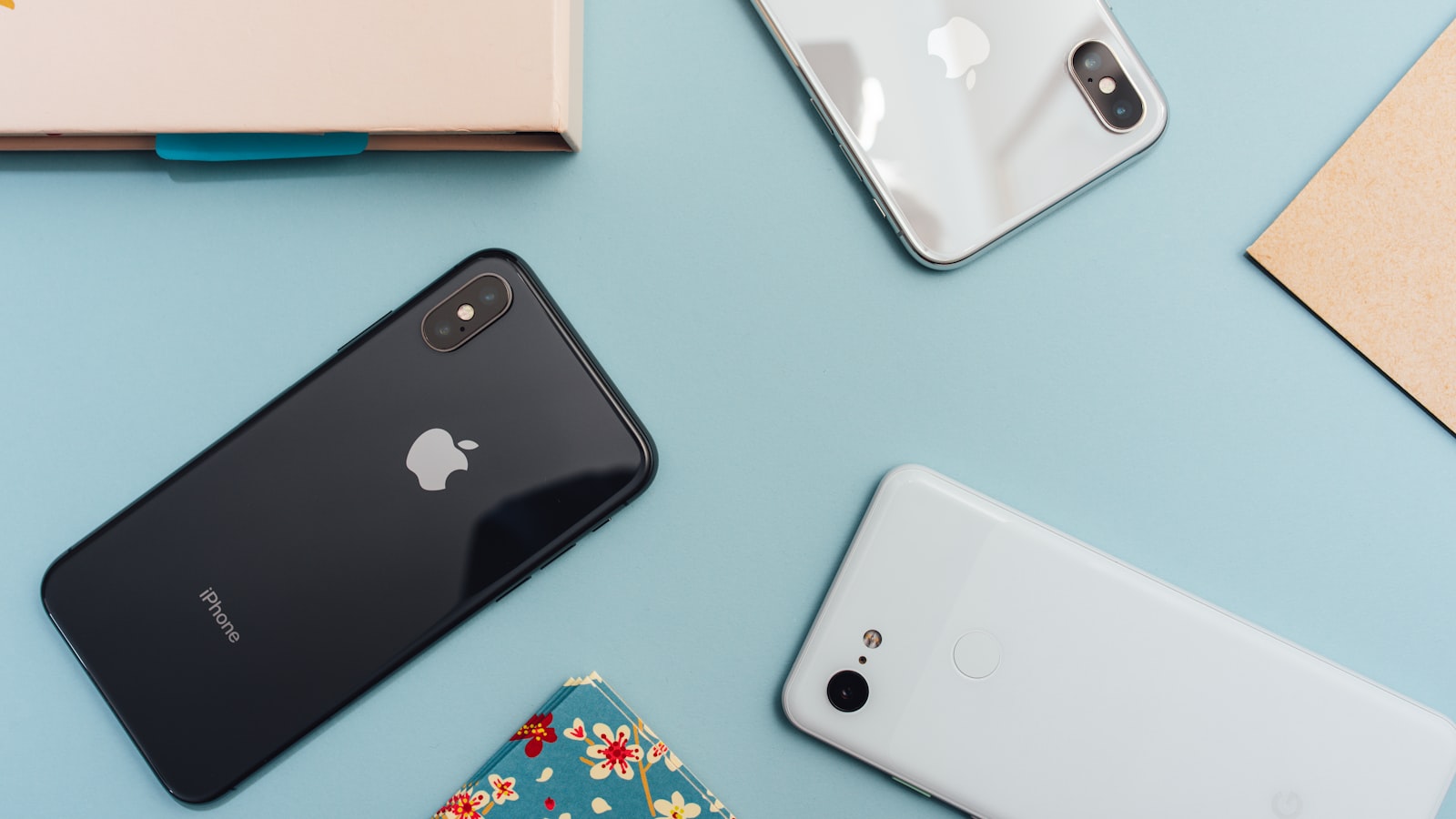
Do not erase, sell, or trade in your old phone until the new one is fully working and you have personally confirmed that your two-factor codes, messaging history, and photos all made it across. Everything else in a phone setup is reversible; wiping the old device too early is the one mistake that can cost you accounts and memories you cannot get back. With that rule in place, the process is straightforward: plug both phones in, join a fast Wi-Fi network, and let the manufacturer's own migration tool do the heavy lifting.
This guide covers both iPhone (iOS) and Android, including Samsung's One UI, which renames a few menus. Menu wording drifts between versions, so treat the paths below as "look here," not gospel.
Before you power it on#
Charge the new phone past 50%. A full restore can move 60-120GB and run 30-90 minutes, and a mid-transfer shutdown means starting over. Have a cable ready: iPhone-to-iPhone and Android-to-Android both support a wired transfer that is faster and more reliable than Wi-Fi. That means a USB-C to USB-C cable for most 2024-onward phones, or the small USB-C adapter that ships in the box.
Sort out your SIM before you begin. If your carrier uses eSIM, you will move the number digitally during setup; if you have a physical nano-SIM, eject it from the old phone with the ejector pin. Finally, gather your Apple Account (formerly Apple ID) or Google account password and make sure you can receive your two-factor code, since the old phone is often exactly where that code lands.
Move your data the reliable way#
iPhone to iPhone#
Power on the new iPhone and hold your old one next to it. Quick Start appears, shows a swirling pattern to scan with the old phone's camera, and offers "Transfer Your Data." Choose "Transfer from iPhone" for a direct device-to-device copy, ideally over a cable, rather than "Download from iCloud," which is slower and only as complete as your last backup. Keep both phones unlocked, plugged in, and untouched until the progress bar finishes.
Android to Android#
The setup wizard's "Copy apps & data" screen is the tool you want. Connect the two phones with a cable when prompted, sign into your Google account, and pick what to bring: apps, photos, messages, call history, and settings. Samsung phones also offer Smart Switch, which does the same job and can additionally move items Google's tool skips, such as some system settings and Samsung Notes.
Switching between iPhone and Android#
Crossing platforms is messier, but the official apps handle the essentials. Moving to an iPhone, choose "Move Data from Android" during setup, which drives Apple's free "Move to iOS" app on the old phone to copy contacts, photos, and messages. Going the other way, the Android setup wizard's cable method pulls contacts, calendar, photos, and, importantly, WhatsApp chats straight from an iPhone. Paid apps do not carry over as installed software; you re-download them from the App Store or Play Store and sign back in.
The three things a normal transfer quietly leaves behind#
This is where most people get burned. A standard restore looks complete, but three categories routinely fail to come across on their own.
Your phone number (eSIM)#
An eSIM does not automatically appear on the new phone. On iPhone, use Settings > Cellular > Set Up eSIM to run eSIM Quick Transfer from your old iPhone; on Android, go to Settings > Network & internet > SIMs and follow the eSIM transfer flow. Some carriers still require you to scan a QR code or phone them, so do this while the old phone is still active.
Your authenticator app#
Codes from apps like Google Authenticator, Microsoft Authenticator, or Authy are not part of a normal iCloud or Google backup. If you factory-reset the old phone without migrating them first, you can be locked out of every account that relies on them. Turn on Google Authenticator's cloud sync, use Authy's multi-device feature, or run each app's built-in export or transfer before you wipe anything.
WhatsApp and Signal history#
Chat apps keep their own separate backups. WhatsApp restores from iCloud on iPhone or Google Drive on Android for a same-platform move, and from the cable method when crossing platforms, but only if you trigger the restore during the app's first launch. Signal transfers via a QR-code device link and does not fully carry history across platforms. Open these apps deliberately and follow the restore prompt, because there is no easy way back to it later.
Lock it down and turn on backup#
Set a screen lock immediately. Prefer a 6-digit PIN or, better, an alphanumeric passcode (iPhone: Settings > Face ID & Passcode > Change Passcode > Passcode Options) over an easily guessed 4-digit code. Enroll Face ID or a fingerprint (Android: Settings > Security & privacy > Fingerprint) so that a strong passcode is not a daily chore.
Then confirm automatic backup is on so you are never this exposed again:
- iPhone: Settings > [your name] > iCloud > iCloud Backup, toggle it on, then tap "Back Up Now."
- Android: Settings > Google > Backup, toggle it on, then tap "Back up now."
Watch the storage trap. iCloud's free tier is only 5GB, and Google's free 15GB is shared across Gmail, Drive, and Photos. If your first backup fails silently, that is usually why. Either prune what you back up, or upgrade to iCloud+ (from about $0.99/month for 50GB) or Google One.
Sign in, set defaults, and quiet the noise#
Open your critical apps one at a time, starting with email, bank, and your password manager, so you can clear each two-factor prompt without a pile-up. Then fix the two things that make a phone actually feel like yours.
Set default apps so links open where you expect. On iPhone, go to Settings > Apps > Default Apps (available on iOS 18 and later) to set browser and mail. On Android, use Settings > Apps > Default apps. Next, tame notifications, which are the number-one reason a new phone feels stressful. Both systems let you switch off alerts per app (iPhone: Settings > Notifications; Android: Settings > Notifications), and both include a Focus or Do Not Disturb mode worth scheduling for sleep hours. Silence games and shopping; keep calls and messages.
Last, install the waiting update, because new phones almost always ship on older firmware. On iPhone that is Settings > General > Software Update; on Android it is Settings > System > Software update (Samsung: Settings > Software update). Only after the new phone is fully working, backed up, and verified should you factory-reset the old one.
FAQ#
How long should a phone transfer take?#
Anywhere from about 15 minutes to over an hour, depending on how much data you have and whether you use a cable or Wi-Fi. A wired transfer of a large photo library is dramatically faster than doing it wirelessly. Keep both phones plugged in and leave them alone until the progress bar reaches the end.
Do I need my old phone during setup?#
Yes, keep it powered on and nearby for the whole process. It authorizes the transfer, holds your eSIM until you move it, receives two-factor codes, and is your fallback if something does not copy. Do not wipe or trade it in until the new phone is fully verified.
Will my paid apps and subscriptions transfer?#
App purchases are tied to your Apple Account or Google account, so you re-download paid apps at no extra charge simply by signing in. Subscriptions billed through the App Store or Play Store follow your account automatically. In-app logins and personal settings, however, usually need to be entered again.
Can I move data after I have already finished setup?#
Some tools only run during the initial setup wizard, most notably cross-platform WhatsApp transfers and the fastest device-to-device restores. If you skipped them, you often have to factory-reset the new phone and start the wizard again. That is the single strongest reason to prepare fully before you tap "Get Started."