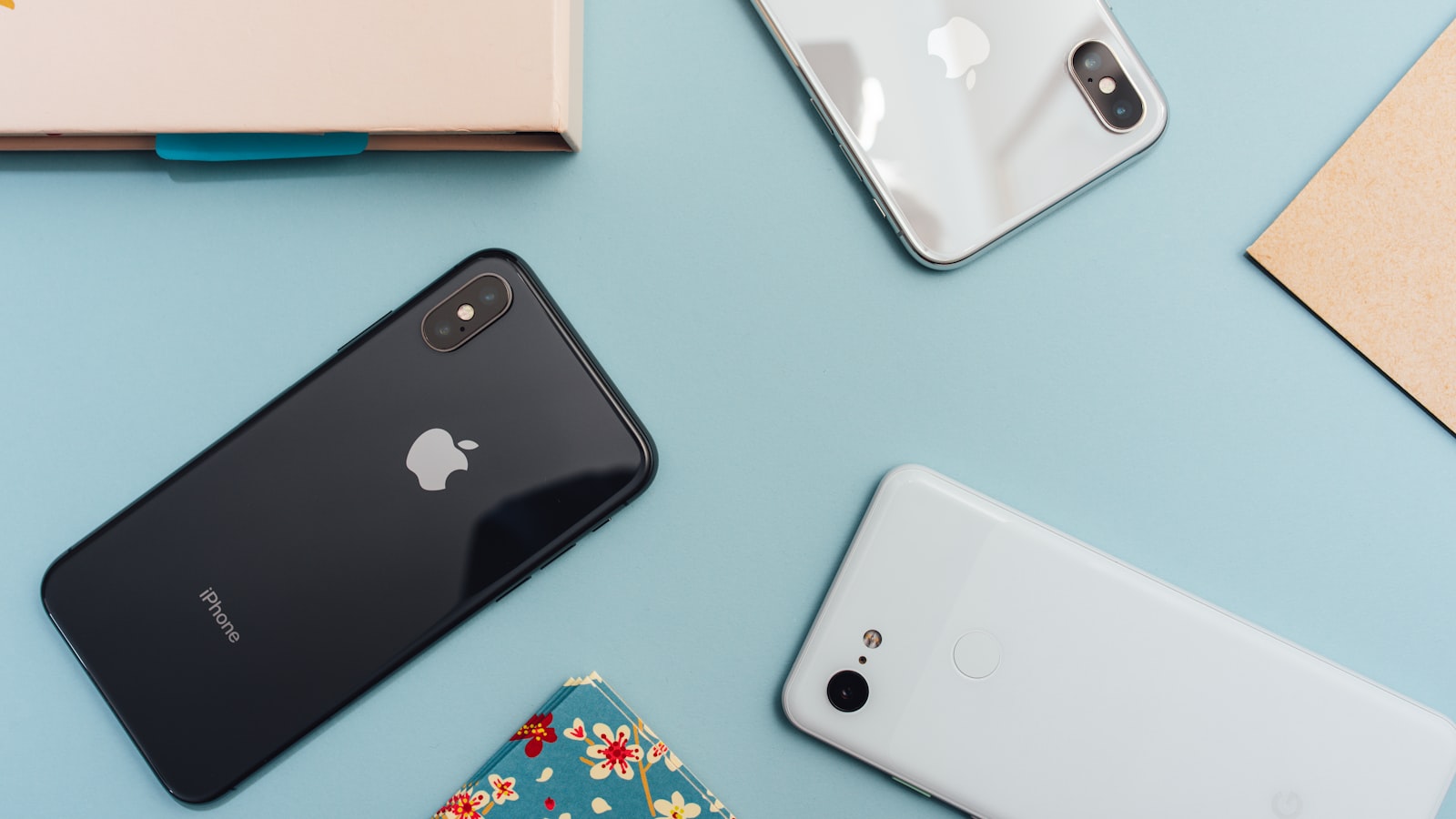
Transferring apps to a new phone is really two separate jobs, and confusing them is what causes most of the pain. Reinstalling the apps themselves is trivial — they redownload free from your App Store or Google Play account — but moving the data inside them (logins, chat history, 2FA codes, game saves) is the part that actually needs a plan. Same-platform moves are largely automatic; cross-platform moves are doable but demand a few deliberate steps.
What actually moves, and what doesn't#
Anything tied to a cloud account reappears the moment you sign in: Gmail, Google Photos, iCloud Photos, Google or Apple Contacts, Calendar, and synced notes all pull down automatically. The data that needs care is whatever lives only on the device — some game progress, WhatsApp history, authenticator seeds, and app-specific settings.
Two storage facts govern the whole process. iCloud gives you 5 GB free, and a full backup of a well-used phone rarely fits in that, so most people need iCloud+ (50 GB for about $0.99/month, 200 GB for about $2.99). Google gives 15 GB free shared across Gmail, Drive, and Photos — and since Google Photos stopped offering free unlimited storage in June 2021, your photos now count against that same 15 GB.
This is the easy path, because the operating system copies your entire app layout, folders, and most settings.
iPhone to iPhone#
Power on the new iPhone and hold the old one next to it. Quick Start appears and offers direct device-to-device migration (iOS 12.4 or later), which copies straight over Wi-Fi or a cable with no iCloud backup required. Choose "Transfer from iPhone," keep both plugged in, and your apps redownload from the App Store in the background, matching the old arrangement.
The common mistake here is trusting an old or partial iCloud backup. If you do restore from iCloud, first check Settings > [your name] > iCloud > iCloud Backup and confirm the last backup is recent and complete. For the most thorough move — including Health data and saved passwords — plug the old phone into a Mac or PC, open Finder or iTunes, and tick "Encrypt local backup." Without that checkbox, Health and Keychain data are deliberately left behind.
Android to Android#
During setup, choose Copy apps & data. Connect the two phones with a USB-C cable (Google's flow prefers this) or wirelessly, sign into the same Google Account, and Android reinstalls your apps and restores call history, SMS, and device settings from Google One backup (Settings > Google > Backup on the old phone).
Samsung, Xiaomi, and others add their own tools, and Samsung Smart Switch is the strongest — it moves more app data, Samsung Notes, alarms, and home-screen layout that the plain Google flow skips. If both phones are the same brand, use the maker's tool; it carries noticeably more across.
Because iPhone and Android use different stores, no app copies directly — you reinstall each from the new phone's store and sign in again. Your personal content, though, transfers well with the official tools.
Android to iPhone: During iPhone setup, choose "Move Data from Android," then install Move to iOS on the Android phone. It creates a temporary Wi-Fi network and transfers contacts, message history, camera photos and videos, mail accounts, calendars, and web bookmarks, and it queues up free App Store matches of your Android apps.
iPhone to Android: Android's setup wizard now accepts an iPhone over a cable and can pull contacts, photos, calendar, and messages across.
The step most people forget when leaving iPhone#
Before you retire an iPhone, you must turn off iMessage, or texts from iPhone-using friends will keep routing to the dead device and never reach your Android:
- On the old iPhone (while you still have it): Settings > Messages > toggle iMessage off, and Settings > FaceTime > off.
- Already wiped it? Go to Apple's Deregister iMessage page (selfsolve.apple.com/deregister-imessage) and enter your number to receive a confirmation code.
- Ask close contacts to delete the old conversation thread and start a fresh one, so their phones stop using the cached blue-bubble route.
Skip this and you will silently lose texts for weeks — the single most common cross-platform regret.
The apps that fight back#
A handful of apps refuse to ride along with the standard transfer, and each has its own move.
WhatsApp#
Same platform, use the built-in backup: Settings > Chats > Chat backup to Google Drive (Android) or iCloud (iOS), then restore during reinstall. Cross-platform is trickier — WhatsApp's official transfer must happen during initial setup using a cable. You cannot move history after you have finished setting up the new phone without wiping it and starting over.
Authenticator and banking apps#
This is where people get burned. Two-factor authenticator apps store their secret "seeds" only on the device by design. Google Authenticator can now export accounts (menu > "Transfer accounts" > "Export," then scan the QR on the new phone), and Authy uses an encrypted cloud backup. But many banking and workplace 2FA setups require you to re-register from scratch and re-verify your identity. The cardinal mistake is factory-resetting the old phone before confirming every code generator works on the new one — do that and you can lock yourself out of your own accounts.
Games and other saves#
Progress usually lives in a cloud identity, not the app itself: Game Center (iOS) or Google Play Games (Android), plus per-publisher logins like Supercell ID. Sign into those first and your levels follow. Games with no cloud save and no linked account genuinely start over, so check before you assume.
Finish strong: keep the old phone for two weeks#
Do not wipe the old phone the day the new one boots. Keep it for one to two weeks as a live backup while you confirm everything landed.
Open your most important apps one by one, verify you are logged in, and check that photos, chats, and anything irreplaceable arrived. Give the new phone a full day on Wi-Fi — icons appear fast, but each app finishes downloading in the background, so the App Store or Play queue may keep working for hours.
Only when you are certain: sign out of your accounts (iPhone: Settings > [your name] > Sign Out; Android: remove the Google account), then run a full factory reset (iOS: Settings > General > Transfer or Reset iPhone > Erase All Content and Settings; Android: Settings > System > Reset options > Erase all data). Signing out first is what releases Activation Lock and Factory Reset Protection, so the next owner is not locked out.
FAQ#
Will I lose my text messages when switching from iPhone to Android?#
Only if you forget to disable iMessage. Turn it off in Settings > Messages before wiping the iPhone, or use Apple's online deregister tool afterward. Otherwise other iPhones keep sending as iMessage and your new Android never receives those texts.
Do paid apps cost money again on the new phone?#
No, as long as you use the same account on the same platform — purchases are tied to your Apple Account or Google Account, so paid apps reinstall free. Switching platforms is the exception: a paid iOS app is a separate purchase on Android, since it is a different store.
How long should the transfer take?#
Direct device-to-device migration typically runs 15 to 60 minutes, depending on how much data you have and whether you use a cable. The longer wait is the background app downloads afterward, which hinge entirely on your Wi-Fi speed and can stretch over several hours on a phone with many apps.
Can I move WhatsApp chats from iPhone to Android after I have already set up the new phone?#
Not without starting over. WhatsApp's cross-platform transfer only runs during the new phone's initial setup, over a cable. If setup is already done, you would have to factory reset and redo it, so plan the WhatsApp move before anything else.